Highlighted text? Practice this concept. Highlighted passages and figures open related questions.
Practice related questions (1)Progress & bookmarks
Current section
4-4 File Management in Small Computers
p. 235
Progress
Not marked complete
Related questions in this lesson 1
Absolute and relative file paths1p. 235
4 - 4 File Management in Small Computers
The explanation so far mainly covered files on large general-purpose computers. From here, the explanation will cover file management in the OS (e.g., Windows, UNIX) of a small computer (e.g., PC).
4-4-1 File Systems
A file system is a mechanism that manages files that are stored on auxiliary storage media such as a hard disk drive. A different file system is provided by each OS, and a typical example is the FAT (File Allocation Tables) file system that is used in Windows-family OSs. In a FAT file system, a hard disk is called a volume, and a volume is divided into units called clusters (or hard disk sectors are grouped) for management. File input/output is performed as a batch in units of clusters, so the role of software is to identify these as records or items. FAT32 is a typical file system, which uses a cluster identifier with 32 bits to divide a volume into 232 clusters. But currently, NTFS (NT File System) is widely used, because the size of HDD has become large and the maximum volume size of NTFS is designed to be large. Other typical file systems except for the Windows OS are shown below.
p. 236

4-4-2 Directory Management
The OS of a small computer manages files hierarchically in a tree structure. In UNIX, the whole file system is managed as a single tree. In this system, a directory is used to group multiple files in the higher hierarchy. In order to create a hierarchical structure, a directory at the highest level is necessary. This is called a root directory. Some files are stored in the root directory, but handling all files at the same level leads to complex management. Therefore, directories (called subdirectories) that group related files into a directory are created beneath the root directory. Beneath a subdirectory, files or other subdirectories can be created. Figure 3-15 is a hierarchical structure diagram that shows an example of the hierarchical management of files.
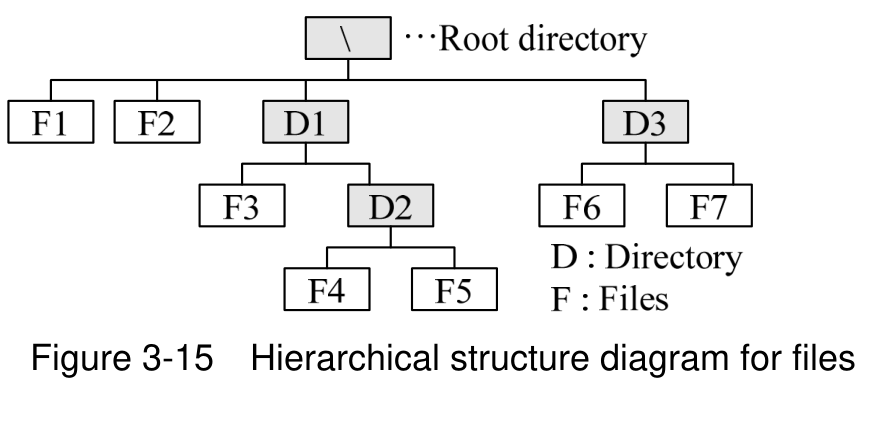
In a hierarchy, a user can only see beneath the directory (called the current directory) that they are currently using. In this example, if the current directory is the root directory, the user can see only F1, F2, D1, and D3. Therefore, in order to manage the files beneath a subdirectory, the user must change the current directory. For example, if the user wishes to use F3, the current directory must be changed to D1. However, changing the current directory each time requires excessive actions, so files are referenced with the two methods below that specify a path (i.e., route). A path that references a file is sometimes called reference information.

p. 237
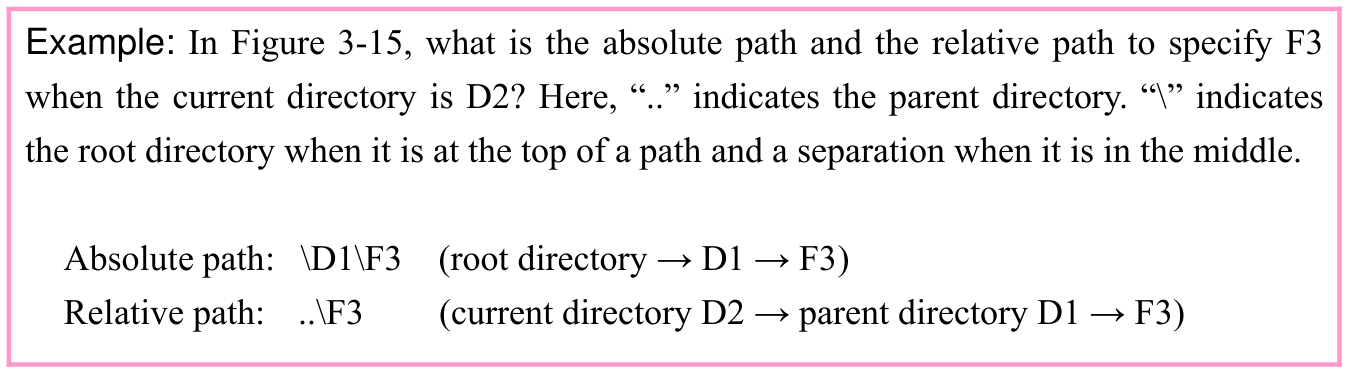
Furthermore, in the case of a multi-user computer, file management for each individual user is required. As a directory for this purpose, a home directory and a desktop directory are used. The current directory after login when the OS is started is called the home directory. This is the highest level in which general users can perform actions, such as saving files. When a user logs in, a dedicated desktop for that user is displayed. The management information for this is stored in the desktop directory.
4-4-3 File Sharing
File sharing is a mechanism to enable multiple users to use a single file. By setting the right to access a file (i.e., file reference permission) for files stored on a file server or NAS (Network Attached Storage), it is possible to make a file available as shared file. In NAS storage, file systems that support multiple protocols are embedded, so file sharing between different OSs or between different types of servers can be easily performed. If a file search function provided by an OS or other software is used, it is possible to search for desired files including shared files, just by specifying part of a filename or the date of the last update.
4-4-4 Symbolic Links
A symbolic link is a function that assigns a different name to a file or directory in the file system of a Unix-family OS. It allows a user or application to handle it in the same way as the actual file. From the perspective of the user or application, it is the same as handling the original file. Through a symbolic link, access to the file or directory can be performed. The same type of function is provided as a shortcut in Windows, and an alias in Mac OS.
4-4-5 Folders
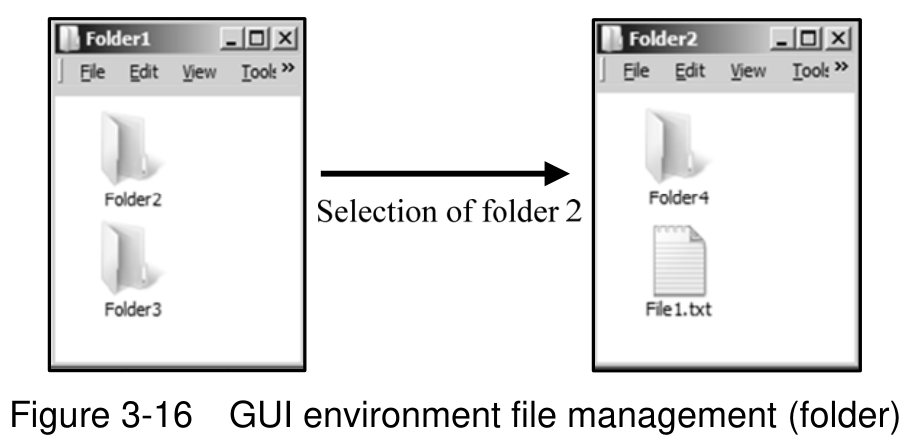
In a Windows-family OS, file manipulation is also performed in a GUI environment. In other words, a file to be used is not specified as a path but is specified by selecting an icon. In this case, the name folder is used instead of directory. Since it is possible to create a folder
p. 238
inside a folder, the user must select folders until the desired file is displayed. In other words, by selecting folders to switch windows, the user changes the current directory. Folders can also be shared in the same way as files.
Section progress
Original chapter exercises
Original chapter exercises →New FE Textbook Vol.1 · IT Fundamentals · First Edition, April 2015