Highlighted text? Practice this concept. Highlighted passages and figures open related questions.
Practice related questions (1)Progress & bookmarks
Current section
4 Human Interface
p. 153
Practice this section 1 linked exam question with default filters
Progress
Not marked complete
Related questions in this lesson 1
Mutually exclusive GUI selection1p. 153
4 Human Interface
A human interface is the contact point between a human and a system (i.e., computer) or service. Particularly, a user interface that is the contact point between a human and a computer is emphasized in an interactive processing system. In order to create or provide a system or service that is easy for humans to use, it is necessary to have a sufficient understanding of the human interface.
4 - 1 Human Interface Technology
(1) Information architecture
Information architecture is a representation technique that is used to arrange information in an easy-to-search manner and transmit it in an easy-to-understand manner. The information architecture starts from the task of arranging the information to be transmitted. The procedure of arranging general information is as shown below.
- 1) Organization of information
Classify and arrange the information to be transmitted in alphabetical order and category order. For example, when information concerning a restaurant is to be transmitted, it is classified into categories, such as sushi, wheat noodle, Peking duck, ramen noodle, and pizza, pasta. At this time, the collection of the classified information is called a chunk and the name (e.g., sushi, wheat noodle) given to the collection of information is called a label. - 2) Structuring of information
Classify and arrange the organized information in a hierarchical order. For example, classify sushi and wheat noodle as Japanese, Peking duck and ramen noodle as Chinese, and pizza and pasta as Italian (this process is also referred to as “Tagging”).

In order to transmit information that is thus classified and arranged in an easy-to-understand manner, use navigation (mechanism of guiding to the destination). For example, on the Internet, by using a site map in which labels are displayed in a hierarchical order, a quick search for the target information is enabled.
p. 154
(2) Human interface
A human interface is the contact point between a human and a system (i.e., computer) or service. In a human interface, consideration is given to the two points below.
(i) Usability This is the “ease of use” for a user. In ISO 9241-11 (JIS Z 8521), the concept of usability is defined as described below.
[Concept of usability [ISO 9241-11 (JIS Z 8521)]] Usability is defined as “extent to which a product can be used by specified users to achieve specified goals with effectiveness, efficiency, and satisfaction in a specified context of use.”
- • Effectiveness:
The accuracy and completeness with which users achieve specified goals- • Efficiency:
The resources expended in relation to the accuracy and completeness with which users achieve goals - • Satisfaction:
The freedom from discomfort, and positive attitudes towards the use of the product
- • Efficiency:
(ii) Accessibility This is the “ease of access” for a user. In ISO/IEC 24786 (JIS X 8341), the following considerations are required as information accessibility.
[Considerations for Information Accessibility [ISO/IEC 24786 (JIS X 8341)]] Enable elderly and disabled persons to operate information and communications equipment along with software and to use services provided with them, without any obstruction.
ISO 9241-110 (JIS Z 8520) defines seven dialog principles that are necessary for designing an ergonomically desirable interactive system. These seven dialog principles constitute the policy for avoiding poor usability of usage difficulty in a user interface.

p. 155

[Interactive system]
Since “interactive” means bidirectional, an interactive system is a system in which information is generally exchanged in both directions. However, according to ISO 9241-110 (JIS Z 8520) as shown below, an interactive system is used in slightly restricted meaning that is defined in ISO 13407 (JIS Z 8530). “Combination of hardware and software components that receive input from, and communicate output to, a human user in order to support his or her performance of a task” When user information is entered in this interactive system, in addition to the use of the keyboard and mouse by the user, an interface that makes use of voice and video is used.
- • Natural-language interface
This is an interface through which humans enter information by using commonly used words (natural language). An example of this interface is a system in which processing progresses in a conversational mode through the use of voice recognition. - • Non-verbal interface
This is an interface through which information is entered by using expressions and movements rather than words. An example of this interface is a system in which information is entered through the movement of eyes and hands by using image recognition and video recognition. During image recognition and video recognition, feature extraction, in which a pattern expressing the features of the image is extracted, is performed.
For thinking of a human interface, the analysis of user operation with reference to the “Five aspects of the human machine interface” advocated by Professor Yamaoka of Wakayama University is also effective.
[Five aspects of the human machine interface] (1) Physical aspect This is the body-related aspect (e.g., the height of the operating panel and the posture during operation). (2) Information aspect This is the aspect concerning exchange of information (e.g., the ease-of-understanding and ease-of-viewing information). Examine the information
p. 156
display method in view of humans performing selective perception in which humans select and accept only interesting information and useful information. (3) Temporal aspect This is the aspect concerning time (e.g., the work time and operation reaction time). Learning functions that enable rapid reproduction of the same operation are effective in shortening the work time. (4) Environmental aspect This is the aspect concerning environment (e.g., lighting, ambient temperature, and noise). (5) Organizational aspect This is the aspect concerning the operations (e.g., manuals).
(3) GUI (Graphical User Interface)
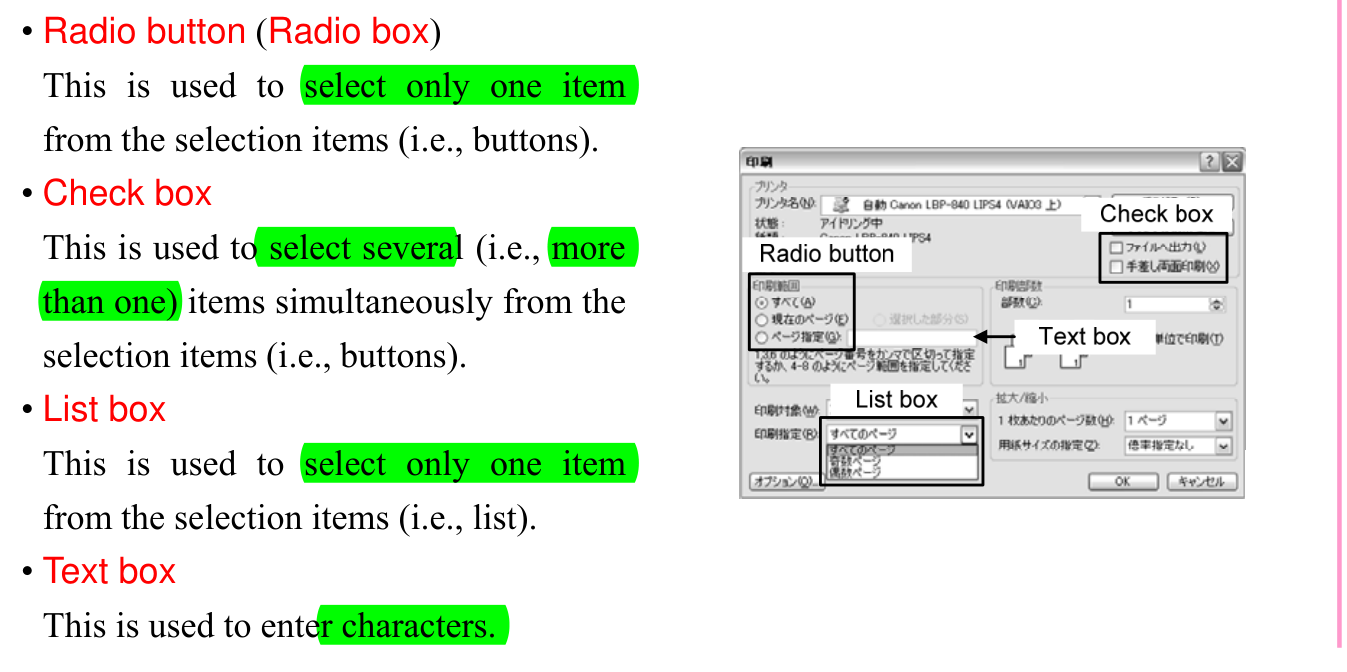
GUI is a technique of improving the usability and accessibility of the system and services through the use of graphics (i.e., pictures). The Window and Icons shown in Figure 2-1 are also an example of GUI tools.
- • Window
It is possible to open several windows on the display and use each window as an independent single display. - • Icon
An icon indicates a resource and a command (shortcut to each application) through an easy-to-understand figure or pattern. Since an icon can be used simply through selection by moving the arrow on the screen with the help of the mouse, a beginner can easily operate the icon.
p. 157
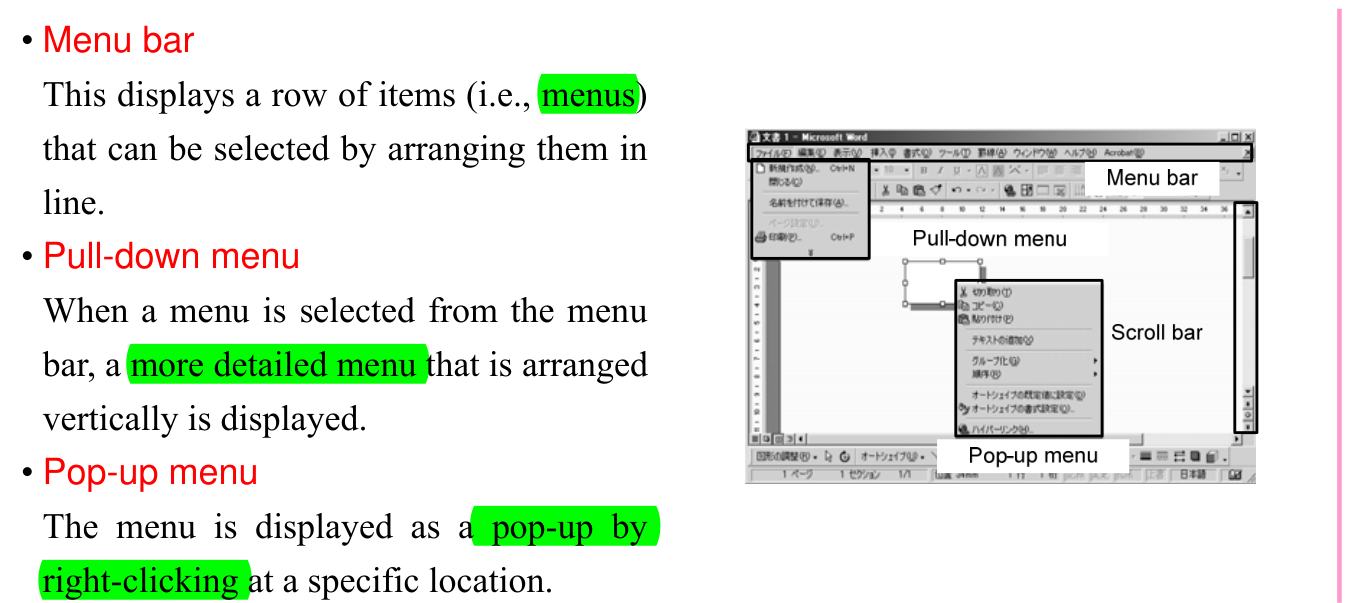
- • Scroll bar
This is used to move the display area of the screen. - • Progress bar
This displays the progress status of the processing by using a graphical scale (i.e., length of the bar).
Section progress
Original chapter exercises
Original chapter exercises →New FE Textbook Vol.1 · IT Fundamentals · First Edition, April 2015